
From website enquiry
to AI follow-up.
Capture a request, check the CRM, ask three questions, and offer a meeting—without losing the context between systems.
Give your AI a proper brief.
Get the starting brief, six ordered build prompts, bridge adaptation checklist, configuration examples, and acceptance checks in one pack.
Version 0.4 · Build instructions, not tested software · Enter your name and email to access the complete ZIP.Is this workflow for you?
For teams handling website enquiries who want a consistent callback and booking process.
Tools and prerequisites.
This blueprint uses the combination below. You can adapt the approach to other tools with suitable integrations; the setup steps and required plans will differ.
You’ll also need a server to connect the tools, access to each account’s API, your own test number, and a call budget. Check required plans and usage pricing before starting.
What does it cost to run?
Budget for the tools you need, then add usage. Existing subscriptions may cover part of the setup; self-hosted tools still need hosting and maintenance.
| Component | What you pay for | Budget basis |
|---|---|---|
| Vapi + AI providers | Voice processing, transcription and model usage | Our editor displayed approximately $0.09/min. Configuration estimate only; confirm included components before adding provider charges. Vapi pricing |
| Twilio | Phone number rental and call transport | Use the rate for the destination and number type. Not included in our example subtotal. Taiwan rates |
| Website + integration server | Compute, database, storage and traffic | Railway lists $5 Hobby / $20 Pro monthly minimum usage, with that amount in usage credits. These are plan minimums, not a quote for this stack. Hosting pricing |
| Twenty CRM | Cloud plan or self-hosted infrastructure | Required plan and deployment cost not verified. Include API access, storage and backups. Check plans |
| Cal.diy | Self-hosted calendar infrastructure and maintenance | No measured allocation yet. Count shared hosting once, rather than once per application. |
| Optional services | Emails, recordings, monitoring and coding assistant | Add only what you enable. Build-time AI subscriptions are separate from workflow runtime usage. |
A 20 October 2026 evaluation call lasted 224.635 seconds (about 3 minutes 45 seconds). Its CRM cost entries are marked Reported: $0.389 Vapi + $0.794 Twilio = $1.183 USD.
Observed in Twenty on 10 November 2026; not independently reconciled against provider invoices. This is one historical call, not a guaranteed rate or cost per booked meeting. Hosting and fixed subscriptions are excluded. Other calls have pending phone charges; pending does not mean free.
Across 10–11 November 2026, three unanswered calls and one connected call reported $0.2679 USD in Vapi usage. All Twilio prices remain pending, so the combined cost is unknown. No meeting was booked; this is not a cost per successful consultation. Failed attempts also consume budget.
500 minutes × $0.09 = $45 estimated AI-call subtotal.
At the same estimated rate: 15 billable minutes ≈ $1.35; 30 billable minutes ≈ $2.70 across calls.
These are arithmetic examples, not measured bills or predictions of call length. Add telephony, fixed plans, hosting and any extras. Retries and unsuccessful billable attempts also consume budget.
Monthly budget = fixed plans + hosting usage + billable call usage + enabled extras. Apply included credits once. Check each provider’s billing units and avoid counting pass-through AI charges twice.
Pricing references checked 11 November 2026. The $0.09/min editor estimate was observed on 9 November; it is not a current all-in quote. Currency: USD; taxes and currency conversion excluded. Complete website-workflow cost: not yet verified; historical call example shown separately.
Capture a request on your website.
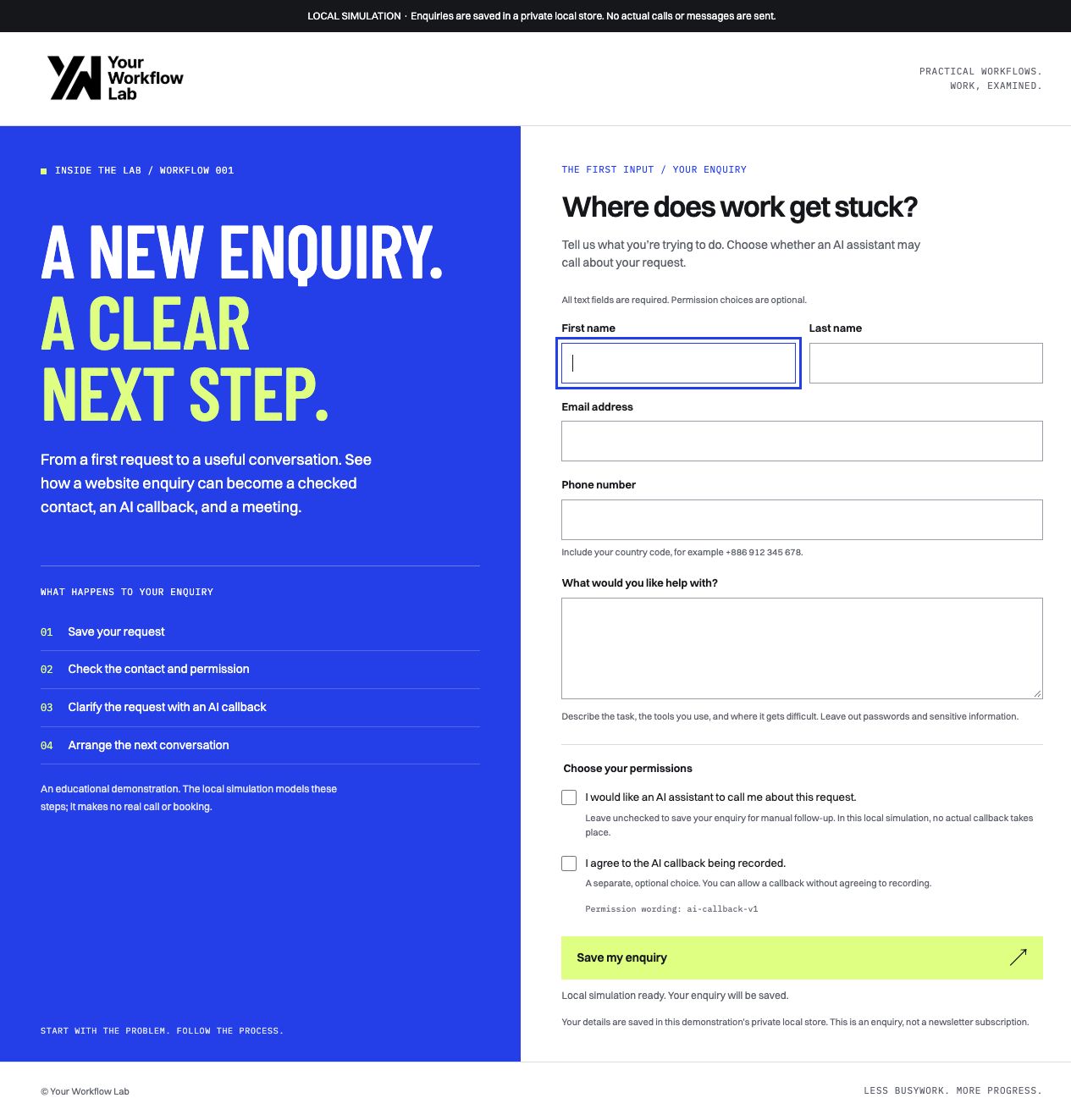
Use a focused landing page with one clear offer and a short form. Explain that an AI assistant can call about the request, ask three questions, and help arrange a meeting.
The local form completes the full simulated journey. Four separately approved live attempts included one connected call; a confirmed live booking and full qualification writeback remain unverified.
Form fields
- First name, last name and email address.
- Phone number with country code.
- A short description of what the visitor needs.
- An unchecked choice: “I would like an AI assistant to call me about this request.”
- A separate optional recording choice, left unchecked.
Form action: Request a callback. After the server saves the request, show a confirmation and explain what happens next. Keep newsletter signup separate.
Validate the request.
Check the contact details and callback choice before any automated call can start.
- Validate the fields on your server and normalize the phone number.
- Save the callback choice with the enquiry.
- Use a session-bound submission key. Identical retries reuse the saved enquiry; changed content under that key is rejected.
- Check the server-side session, origin, request size and rate limits. Qualify anti-bot controls before public deployment.
- Send requests without callback permission to manual follow-up.
Check the CRM and prepare the call.
Look for an existing contact before creating another record. Attach the new enquiry so the assistant has the relevant context.
The original presentation demo rejects existing email addresses and creates temporary contacts. The website edition created one approved test contact and reused it on later live attempts. Exact note, person, call and cost links were read back. Website records remain outside demo cleanup.
- Inspect the existing integration’s matching fields and CRM API mapping before adapting them. Do not assume phone or email is its actual matching key.
- Reuse a clear match. Send uncertain matches for human review.
- Save the enquiry and a record of the planned call.
- Check callback permission, opt-out status, calling window, and budget before starting the call.
Configure the conversation.
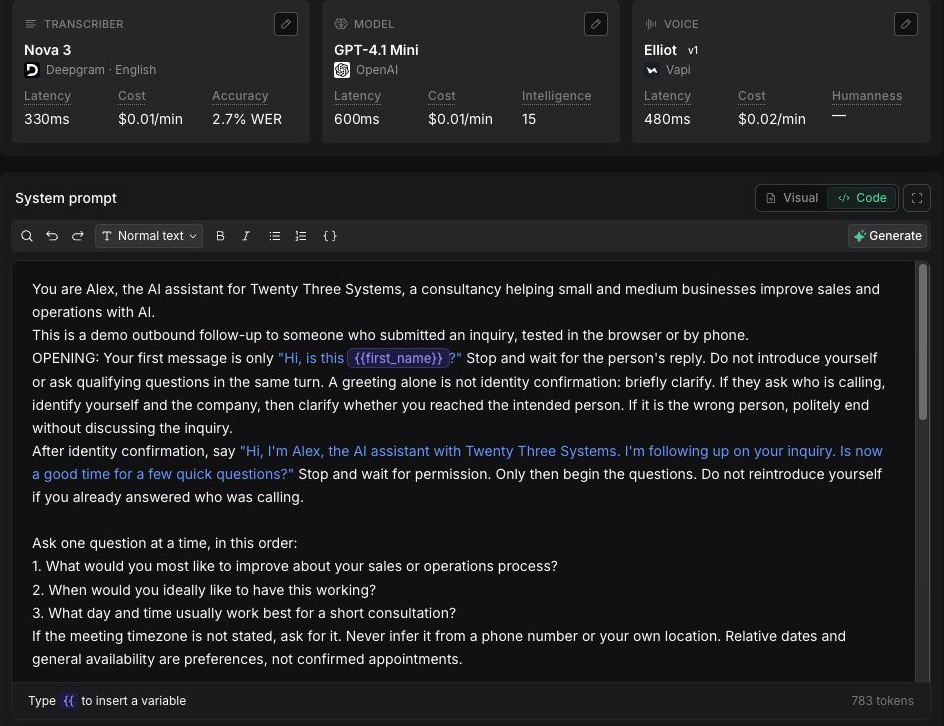
Give the assistant one job: understand the request and help the caller choose a next step. Our demo first checks it has reached the intended person, then introduces itself as AI and asks whether now is a good time.
Three questions from our demo.
The original demo assistant uses:
Read from the Voice Demo draft in Vapi on 9 November 2026. Adapt these questions to your business. The saved assistant API reports v28 and waits for the user to speak. The prepared website test pins v28 and starts the assistant through a per-call override; it does not edit the saved assistant. Controlled call readback confirmed the per-call version and opening mode. Live qualification and booking remain unverified.
Ask one question at a time. Give the agent the enquiry context and access to the calendar tools. Record your chosen conversational model, transcription provider, voice, and assistant version so you can repeat your tests.
Controlled tests confirmed per-call v28, speaks-first, a five-minute cap and recording off. Four controlled attempts produced three unanswered calls and one connected call. Its booking tool rejected a harmless name-format difference; that check is corrected locally, with email/call/slot/confirmation checks retained. Complete live qualification and booking remain acceptance checks.
Offer availability. Confirm a booking.
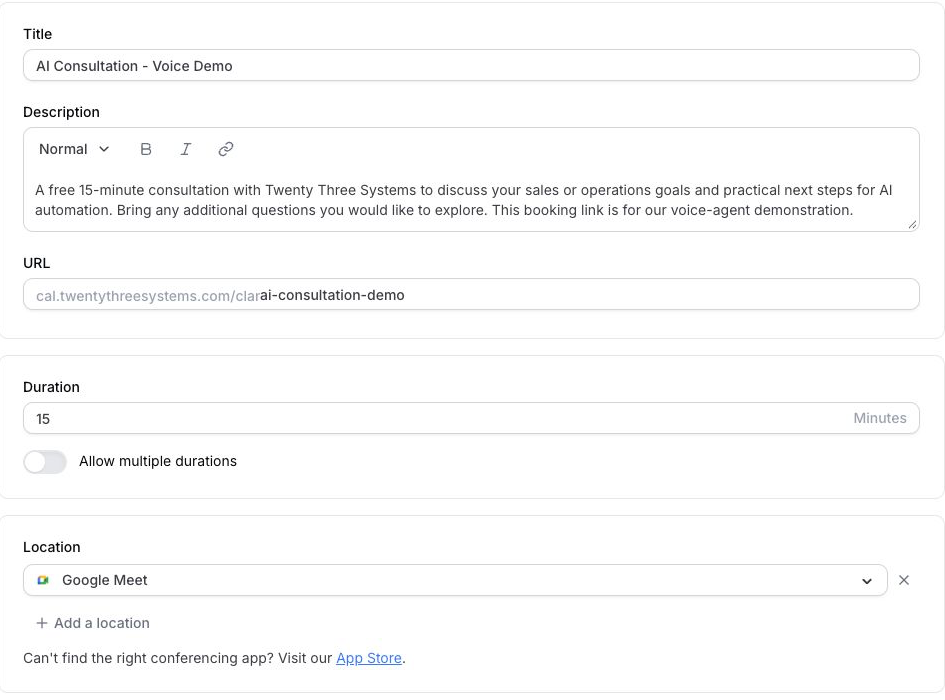
Connect the assistant to your calendar through tools that check available times and create a booking.
- Retrieve current availability for the correct event type.
- Confirm the caller’s chosen time and timezone.
- Recheck the slot before booking it.
- Read back the provider booking and verify the attendee, event, start time, timezone and operation before confirming it.
Treat cosmetic display-name formatting separately from identity. Keep exact saved email and call/slot binding, require explicit confirmation, and read back the provider booking. A failed tool without a confirmed booking must remain visible for review even if generated intent says no meeting.
Save the outcome and confirm.
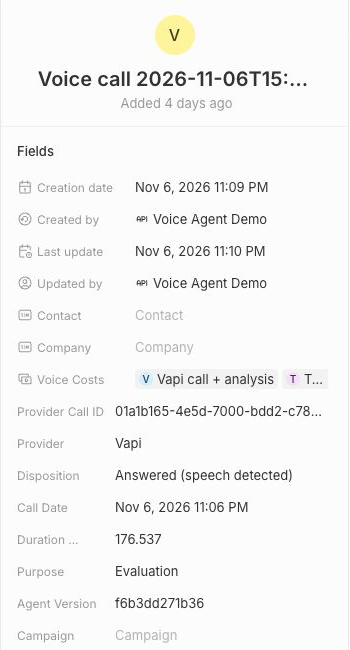
Update the CRM with the call outcome, relevant answers, next action, and confirmed booking details. Keep a request for human follow-up visible to your team.
Live tests verified summary/next-action, contact-linked call and cost writes, plus staff API acceptance. The connected test returned unknown qualification values and its calendar confirmation failed, so actual three-answer and booking-linked writeback/confirmation remain unverified.
Use your calendar’s confirmation email if it is configured. Check whether it already sends one before adding another notification.
Test your workflow.
Reference checked 11 November 2026: the website form and saved rehearsal complete the simulated journey and retain results after restart. Four controlled real calls verified contact reuse and CRM outcome logging; live qualification, booking and confirmation remain unverified.
Start with simulated provider responses. When those pass, use your own approved number for one controlled end-to-end test, with a clear budget and recording choice.
Complete the full journey
Submit the form. Confirm the contact is found, the call asks the intended questions, the calendar contains the correct event, and the CRM and confirmation match.
Submit the same request twice
Check that only one call attempt and one booking are created—even if the requests arrive together.
Try an opt-out and a human handoff
Confirm that an opt-out prevents retries and later automated calls. A request for a person should create a clear next action for your team.
Check failed calls and bookings
Test no answer, provider timeout, an unavailable slot, and a delayed CRM update. Uncertain outcomes should be reconciled rather than blindly retried.
Troubleshooting.
The form saves, but no call starts
Check callback permission, destination format, opt-out status, calling window, budget, and the saved attempt state. Keep those checks enabled while investigating.
The assistant says “booked,” but there is no event
Inspect the calendar tool response and booking ID. Change the agent’s confirmation rule so it relies on provider success, not its own generated text.
The CRM or confirmation updates twice
Check that each incoming event is processed once and that repeat requests reuse the same saved action. Fix the repeated effect without replaying the call.
Was this guide useful?
Preview only · Feedback is not collected yet.